
WEB HOSTING PLANS ON CLOUD
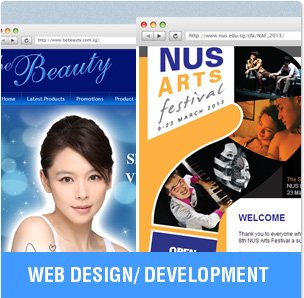
BlueBell People’s main core business is into Web Hosting, Dedicated Servers and Web Design Services such as Website Maintenance as well as the development of Content Management System (CMS) using WordPress and Joomla, Shopping Cart Systems, Product Catalog System, Mobile Websites, Social Media (Facebook, Twitter, Blogs).
BUDGET 15 Web Hosting Plan
From SGD$150/yr
- 10GB Disk Space
- Unlimited Emails & MySQL
- Free Lifetime Domain Name!!

Starter 15 Web Hosting Plan
SGD$210/yr
- 30GB Disk Space
- Unlimited Emails & MySQL
- Free Lifetime Domain Name!
Professional 15 Web Hosting Plan
SGD$318/yr
- 50GB Disk Space
- Unlimited Emails & MySQL
- Free Lifetime Domain Name!
SME 15 Web Hosting Plan
SGD$510/yr
- 80GB Disk Space
- Unlimited Emails & MySQL
- Free Lifetime Domain Name!


WEB HOSTING & WEB DESIGN SERVICES WITH EXCELLENT SUPPORT
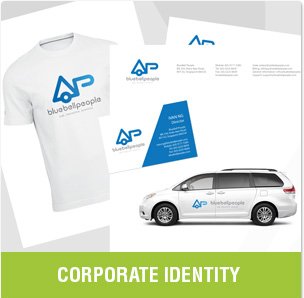
Our Singapore Office also provide other services which include SEO (Search Engine Optimization), Flash Animation & Games, Corporate Identity, Graphic Design, Logos & Brochures Designs.